

A Google Drive chatbot answers questions from the documents you already keep in Drive, so the price list in Sheets, the returns policy in Docs and the brochure PDF become answers instead of attachments. With Ultimo Bots you connect your Google account once, pick the files it should learn from, and your AI agent answers website visitors and customers from them around the clock. Nothing is copied or pasted, and when the documents change, the agent can re-read them on a schedule.
Ultimo Bots is an AI agent that answers your customers from your own content, including the Google Drive files you choose, around the clock on your website, a shareable chat link, Messenger, Instagram, Telegram and Slack, captures leads, hands over to a person in live chat, and connects to Zapier, Make or n8n so routine customer flows run end to end.
Answer customers from Google Drive
What a Google Drive chatbot does, and which kind you need
Search for a Google Drive chatbot and you will find four different things under one name. They all read your Drive files; the difference that matters is who is asking the questions.
| Option | Who asks | Where it answers | What it takes |
|---|---|---|---|
| Gemini in Google Drive | You and your colleagues, signed in to Drive | Inside Google Drive | An eligible Google Workspace or Google AI plan |
| ChatGPT with its Google Drive app | You, signed in to ChatGPT | Inside ChatGPT | A ChatGPT account with Drive connected |
| A do-it-yourself build, such as an n8n workflow template | Whoever you build it for | Wherever you wire it up | Hosting, an AI model account and every fix after launch |
| An AI agent trained on your Drive files (Ultimo Bots) | Your website visitors and customers | Your website, a chat link, Messenger, Instagram, Telegram and Slack | Connect Drive once and pick the files |
The first two are personal assistants. Gemini in Drive can summarize files and folders and answer questions across several of them, which is excellent for finding something in your own Drive. Neither sits on your website. The last two can face outward: they take the knowledge your team maintains and put it in front of the people who would otherwise email you. If that is the job, the rest of this guide shows how to do it without building anything.
Which Google Drive files can an AI agent learn from?
Ultimo Bots imports the formats most businesses already keep their customer-facing knowledge in:
| File type | Formats | Good for |
|---|---|---|
| Documents | Google Docs, Word (.docx, .doc), plain text (.txt) | FAQs, policies, terms, guides |
| Spreadsheets | Google Sheets, CSV | Price lists, product specs, opening hours by location |
| PDFs | PDFs with selectable text | Brochures, menus, manuals, course outlines |
Each file can be up to 10 MB. Google Docs and Sheets come in cleanest, because Google exports their text directly. A Google Sheet is read row by row, and each row becomes its own labelled record with the column names attached, so a question about one product pulls exactly that row. The agent reads the first tab of a Sheet, so keep what customers ask about there.
Three quick conversions cover most of the rest. An Excel file becomes a Google Sheet when you open it in Drive and choose File, then Save as Google Sheets. A slide deck works once exported as a PDF. A scanned PDF is a picture of text, so give the agent a text version of it instead.
How to connect Google Drive to your AI agent
The whole setup takes a few minutes, and you only connect the account once.
Step 1: Open Google Drive in your knowledge base
In the Ultimo Bots portal, open Knowledge Base in the sidebar, choose Google Drive, and click Import from Google Drive.
Step 2: Connect your Google account
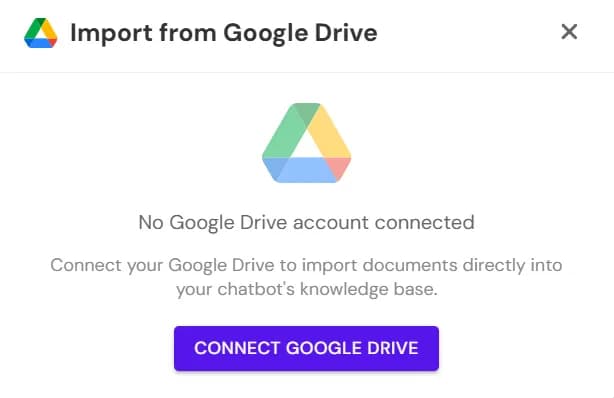
The first time, the window tells you no account is connected yet. Click Connect Google Drive.
Step 3: Sign in with Google and allow access
Google asks which account to use and what to allow. Ultimo Bots only asks for access to the files you pick in the next step, never to your whole Drive. If your documents live in more than one Google account, add the others later with Add another account.
Step 4: Open Google's file picker
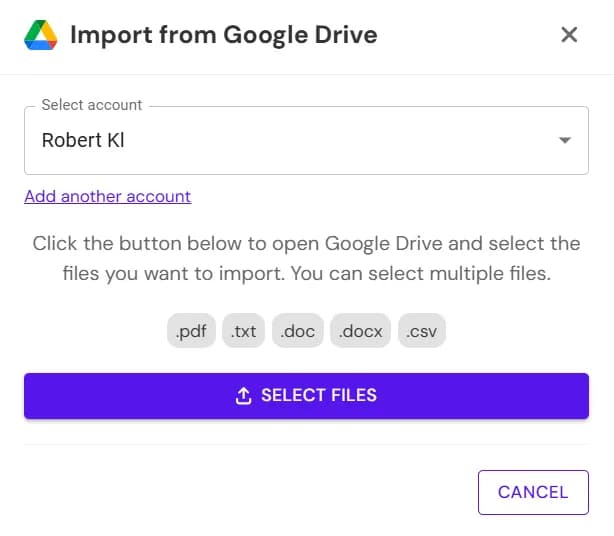
Choose the account and click Select Files. Google's own file picker opens, with search across your Drive.
Step 5: Pick the files
Select as many files as you like. The picker lets you open any folder and tick every file you need in one go, and Ultimo Bots imports them together.
Step 6: Check what it learned
Imported files appear in the list with the date of their last sync. Open any of them to see the exact text the agent reads, then ask the agent the questions your customers ask and sharpen the document wherever an answer comes out thin.

Keeping answers current when your documents change
Documents change: a new price list, a revised returns policy, a longer opening-hours table for December. The agent learns the new version in one of two ways.
- Re-sync by hand, on any plan. Select the files in the list and press the refresh button; the new content replaces the old.
- Auto-sync on a schedule. Switch on Auto-sync files and the agent re-reads every imported Drive file monthly on Boost, or as often as daily on Ultimo. Files that have not changed are skipped, so only real edits are re-learned.
| Plan | How your Drive files stay current |
|---|---|
| Smart | Re-sync by hand whenever a document changes |
| Boost | Automatic re-sync every month, plus by hand any time |
| Ultimo | Automatic re-sync as often as daily, plus by hand any time |
Two habits keep this effortless. When you add a new document to Drive, import that file once, and from then on it is on the schedule like the rest. And when you delete a file in Drive, the agent keeps the version it learned until you remove it from the list, which takes one click, so nothing drops out of its answers by accident.
What customers can ask once your Drive is connected
The best Drive files to connect are the ones you already send to customers by hand. Four kinds carry most of the value:
- Price lists and product specs in Sheets. "Does the 40 cm table come in oak, and what does it cost?" The agent finds the row and answers with the price you keep there.
- Policies and terms in Docs. Shipping, returns, cancellations, what a package includes. The agent answers from your wording rather than a guess.
- Brochures, menus and guides as PDFs. Anything with selectable text, from a treatment menu to a course syllabus.
- Setup and troubleshooting guides. The questions that come after a sale, answered from the same document your team would send.
Drive does not have to hold everything. The same knowledge base takes your website pages, uploaded files, Q&A pairs, OneDrive and Notion, and the agent answers from all of them at once, in the visitor's language.
Answering is only half the job. When a visitor wants something the documents cannot give, the agent collects their name, contact and request and notifies you immediately, with the conversation in your leads inbox. When they ask for a person, it hands over in live chat in the same window. And through app actions it can share your booking link or pass the details to a Zapier, Make or n8n workflow. It does all of this on your website, through a shareable chat link, and in Messenger, Instagram, Telegram and Slack.
Is it safe to connect Google Drive to an AI agent?
Connecting Drive should not mean handing over your whole Drive, and with Ultimo Bots it does not.
- Access to the files you pick, nothing else. Ultimo Bots uses Google's most limited Drive permission, the drive.file scope, which only covers files you open with the app through Google's picker. Google lists it among its recommended, non-sensitive scopes. The rest of your Drive stays invisible.
- Your Google password stays with Google. You sign in on Google's own page, and Ultimo Bots never sees the password.
- Disconnect whenever you like. Remove the account under Manage accounts in the portal, or revoke access in your Google Account settings.
- Your knowledge stays yours. Ultimo Bots is GDPR-aligned with European data handling, and the knowledge base belongs to you.
- Built for teams. Connect several Google accounts, for example a shared company account and your own. Teammates in your workspace can import from a connection without signing in again, and read-only members cannot start a new one.
What the Google Drive connection costs
Google Drive is included on every Ultimo Bots plan at no extra cost. Each imported file counts as one knowledge source, from the same allowance as your website pages, uploads and Q&A pairs.
| Plan | Monthly | Yearly (per month) | Knowledge sources | Drive auto-sync |
|---|---|---|---|---|
| Smart | $29 | $19 | 200 | By hand |
| Boost | $59 | $39 | 1,000 | Monthly |
| Ultimo | $149 | $99 | 10,000 | Up to daily |
Every plan also includes every channel, lead capture, live chat handoff and analytics, and starts with a 7-day free trial you can cancel any time. The full comparison is on the pricing page.