


To add live chat to your website, create an account with a chat provider, install its plugin or app for your site builder or paste its code snippet just before the closing body tag, then set your hours and test it from a private browser window. On almost any site that takes about ten minutes. The part that decides whether the chat wins you customers comes after the install, and most guides skip it: who answers when a visitor writes at 21:00 and nobody is online.
Add live chat that never sits empty
How to add live chat to your website in three steps
Whether you call it live chat, a chat box or a website chat widget, adding chat to a website follows the same path with every provider, free or paid. Here it is with the decision that matters at each step.
1. Pick a provider based on who will answer. This is the real choice, and it is not about features. If someone on your team sits at a desk all day, a classic live chat tool works: the message goes to a person and the person replies. If nobody can watch the chat all day, you need a tool where an AI answers first and a person takes over when needed. More on that below, because it changes everything else.
2. Install it on your site. Depending on your builder this is a plugin, an app from the builder's marketplace, or a few lines of code. The table below shows exactly where it goes.
3. Set availability, then test like a visitor. Tell the tool when you are reachable and what visitors see when you are not. Then open your site in a private window and on your phone, ask a real question, ask for a person, and check that the alert reaches you somewhere you will actually see it.
Step three is the one people rush. A chat bubble that promises a quick reply when nobody is there can do more harm than having no chat at all.
Snippet, plugin or app: the install path for your site builder
There are only three ways chat gets onto a website, and your builder decides which one you use. Here is where it goes on the common ones, checked against each platform's own help pages on 27 September 2026.
| Your site | Install type | Where it goes |
|---|---|---|
| WordPress | Plugin | In your admin under Plugins > Add New: search for the provider, install, activate, then connect your account |
| Wix | App | Wix App Market > Add to Site. Tools that only offer code go in Settings > Custom Code, which needs a published site with a connected domain |
| Shopify | App or code | An app from the Shopify App Store, or the snippet in your theme's theme.liquid file (Online Store, then Edit code) |
| Squarespace | Code | The Code Injection panel, Footer field, which places it before the closing body tag on every page. Available on Core, Plus, Advanced and some legacy plans |
| Webflow | App or code | A native app from the Webflow Marketplace, or Site settings > Custom code tab > Footer code, then publish. Custom code needs an active Site plan or a Core, Growth, Agency or Freelancer Workspace |
| Any other site or custom HTML | Code | Just before the closing body tag of your page template, or in your builder's footer or custom code setting |
The plan requirements are the detail that trips people up: both Squarespace's code injection guide and Webflow's custom code guide spell out which plans allow code, and on Webflow the chat only appears once you publish.
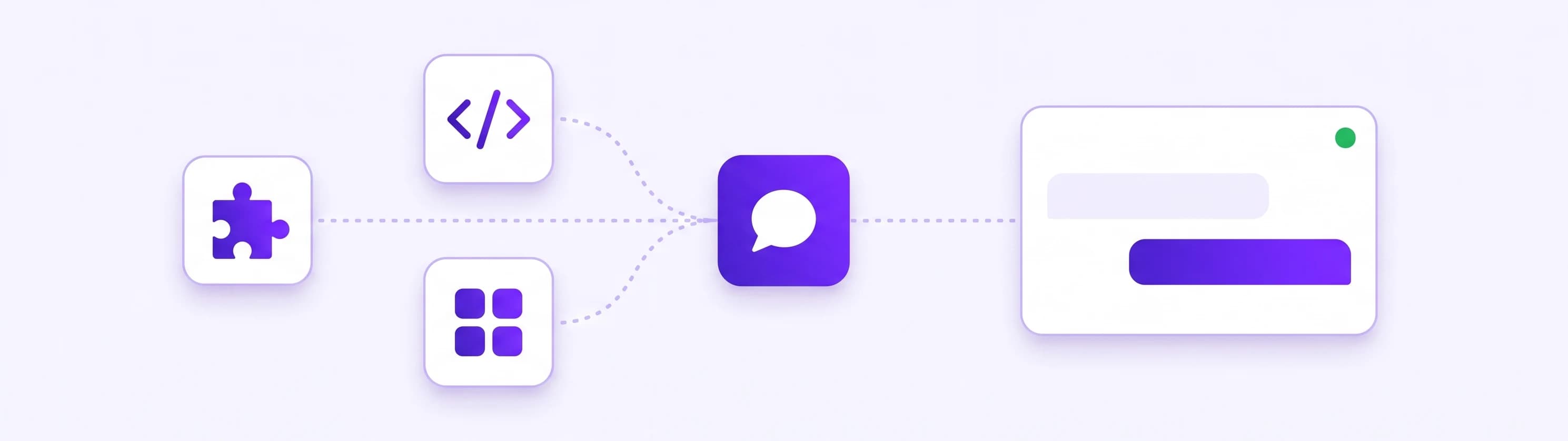
Ultimo Bots uses the same three doors. On WordPress it is a plugin from the WordPress.org directory, on Wix an app from the Wix App Market and on Webflow a native app from the Webflow Marketplace, both of which place the chat on your site without any code, and everywhere else one snippet that you copy from your dashboard and paste inside the body of your page. If you would rather not touch code at all, every trial includes a free setup call where someone walks you through it. And if you are on WordPress and still weighing plugins, our guide to choosing a WordPress chat plugin goes deeper on that choice.
The step most guides skip: who answers at 21:00
Almost every guide to adding live chat stops once the bubble appears. That is the easy part. The hard part is that a chat window is a promise: it tells a visitor that someone will reply now, not tomorrow.
A Reddit thread that Google currently shows for this very search puts it well: live chat hurts when it is annoying, and on its list is the "we're offline leave a message" that never gets answered. Visitors write when they have time: evenings, weekends, lunch breaks. For most small teams that is exactly when nobody is at the desk.
So before you install anything, decide who answers at 21:00. There are three honest options:
- You do. Push alerts to your phone, replies from the sofa. That works for a few weeks, until a dinner, a holiday or a busy day, and then the unanswered messages start.
- People you pay. Outsourced chat agents cover the evenings for an hourly fee. Even tawk.to, a popular free live chat, says on its own Why free? page that many businesses do not have the time or manpower to answer chats all day, and it sells trained human agents by the hour for exactly that reason. If your team covers eight hours a day, staffing the other sixteen means roughly 480 paid hours a month, whatever the hourly rate.
- An AI agent that answers first. It replies from your own website and documents in seconds, at any hour, and brings you in when you are online and a person is needed. When you are offline, the visitor still gets a real answer, and anything that needs you reaches you as a lead with the full conversation attached.
For most small teams the third option is the only one that keeps the promise without costing their evenings. It is the setup the rest of this guide walks through.
Live chat and AI answers in the same window
Whether you searched for live chat or for how to add a chatbot to a website, the install is identical. The difference is who types the reply, and the best answer is both, in one window, with a clear rule for when each one speaks.
Ultimo Bots is an AI support agent with built-in live chat for any website: it answers from your own content around the clock on your website, a shareable chat link, Messenger, Instagram, Telegram and Slack, captures leads, hands the conversation to you live when a person is needed, and connects to Zapier, Make or n8n so routine customer flows run end to end.
What the AI half handles before you type a word:
- Answers from your own content. Enter your website address and it reads your pages. Add PDFs, Word files, question and answer pairs, Google Drive, OneDrive or Notion for anything that is not published. The knowledge base is what it answers from, so the answers sound like your business, not like the internet.
- Replies in the visitor's language, automatically, in more than 80 languages.
- Captures the lead while interest is high: name, email, phone or any detail you need, collected in the conversation. You are alerted the moment it lands, with the transcript attached.
- Tells visitors they are talking to an AI assistant, with a short notice built into the chat window.
And the human half, the live chat you join when it matters:
- The "talk to a human" button only shows when someone is there. You switch yourself online with a toggle, or set weekly hours in your own timezone. When nobody is online, the button stays hidden and the AI keeps answering; if a request is not picked up in time, your own offline message is shown.
- The AI hands over on its own. When you are online and a visitor asks for a person, or the question goes beyond what your content covers, it passes the conversation to you instead of guessing.
- You hear about it where you already are. Email, Slack, Microsoft Teams or Telegram, with a link that opens that exact conversation.
- The visitor never repeats themselves. You join from the inbox, the AI goes quiet, and the visitor stays in the same chat window with the whole history in front of you.
- Help while you type. Translate both sides of a conversation on every paid plan, and on Boost and Ultimo let the AI suggest a reply in your voice.
Set up the handoff in ten minutes
The realistic sequence from zero to a chat that covers every hour:
- Create your agent from your website address. It reads your pages and is ready to answer within minutes.
- Fill the gaps. Ask it the five questions you get most often. Anything it answers vaguely, add as a question and answer pair or upload the document that covers it.
- Make it look like your site. Colors, font, logo, welcome message and launcher position, with a live preview.
- Install it. Plugin, app or snippet, exactly as in the table above.
- Set your availability. A manual toggle if your days vary, a weekly schedule if they do not. Write the offline message in your own words: say when you are back and that the assistant can help in the meantime.
- Choose where alerts land. Email for leads, Slack or Teams for the team, Telegram for your phone, where the alert button signs you straight into the conversation.
- Test like a visitor. On the live site, in a private window and on your phone: ask a real question, ask for a person while you are online, then go offline and check what a visitor sees.
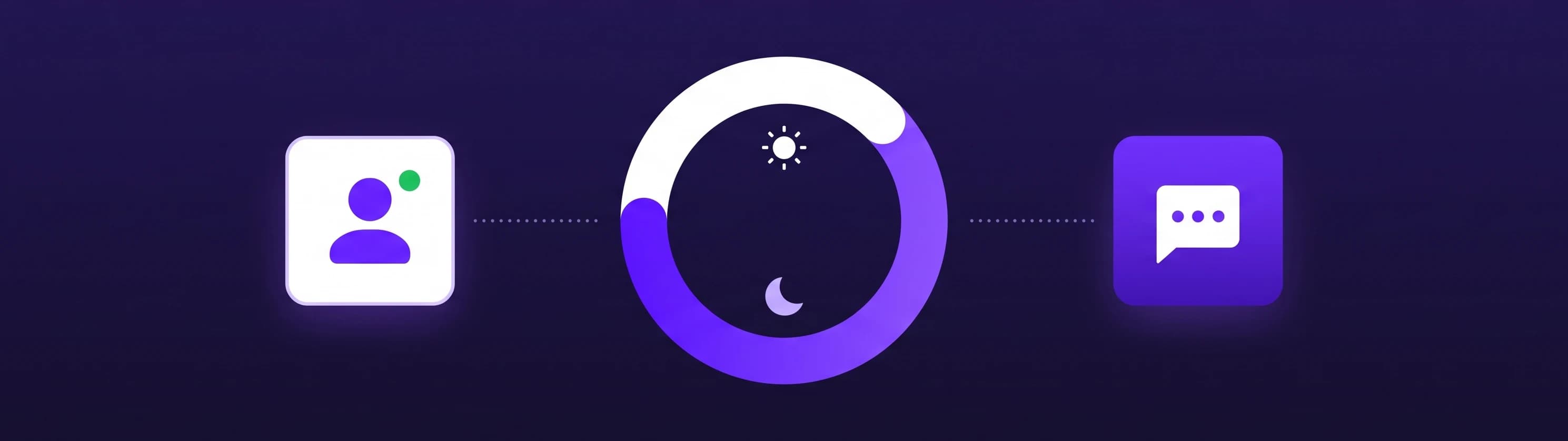
Step five is where the promise gets kept. With availability set honestly, the button never offers a person who is not there, and every hour outside the white arc is still answered, by the AI, from your own content. When the AI should hand over, and how to make sure nobody has to repeat a question, is covered in our guide to the chatbot human handoff.
One agent in more places than your website
Questions do not only arrive on your website. The same agent, with the same knowledge, answers on a shareable chat link for email signatures and QR codes, in Facebook Messenger, Instagram DMs, Telegram and Slack, and every conversation lands in one inbox.
It also does the follow-up work. What the agent collects can go straight into HubSpot or Mailchimp, or to a Zapier, Make or n8n webhook, so practically any routine flow you handle by hand can run end to end: a quote request at 21:00 becomes a CRM record, a task and a confirmation email before morning. Make and n8n can even send a result back for the agent to use in its answer; Zapier receives the data but cannot reply into the chat.
Is there a free live chat for websites?
Yes. tawk.to is free, and paid tools such as Tidio also offer a free plan with usage limits. The honest cost of free live chat is not the software, it is the hours someone spends answering it.
Free tools also tend to charge once AI enters the picture: tawk.to's AI Assist add-on has a free tier for limited volume and paid plans from $29 a month (prices checked on the tawk.to and Tidio pricing pages on 27 September 2026). Free human chat is the right answer if someone can reply during your opening hours and you accept that evenings go to a contact form. If you want the evenings covered, you pay with your time, with hired agents, or with an AI subscription.
What live chat for your website costs with Ultimo Bots
Ultimo Bots prices by the agent, not by the seat, so the whole team can join the inbox at no extra cost. Here are the public plans:
| Plan | Monthly | Yearly (per month) | AI answers per month |
|---|---|---|---|
| Smart | $29 | $19 | 500 |
| Boost | $59 | $39 | 2,000 |
| Ultimo | $149 | $99 | 10,000 |
Live chat with human takeover is included on every plan, and so is every channel. Only AI answers count toward the allowance; your own messages in a live conversation and all alerts do not. Every plan starts with a 7-day free trial, and you can cancel anytime. Details on the pricing page.
Three checks after your first week
A chat widget is easy to install and easy to forget. Give it one week, then look at three things:
- Read ten conversations from outside your hours. Were the answers right? Every vague one is a gap you close once with a question and answer pair, and it stays closed.
- Count the leads that arrived while you were offline. Each one is a conversation that used to end at "leave a message".
- Look at the handoffs that reached you. They should be the conversations that genuinely needed a person. If you are still answering the same question by hand, add it to the knowledge base.
If the overnight answers are right, the leads are real and your phone only buzzes for the chats that deserve you, your live chat is keeping its promise at every hour. See how the widget looks on a real site on the website channel page.